Icon stacks
Any home icon can carry a list of apps you choose. Hold it and they appear underneath it as a stack of small icons, in your order, each one a tap away. Let go and the home screen is exactly as it was.
Long press on any icon
 Arcadia
Get it
Home screen launcher
Notifications, shortcuts and a live widget — without ever opening the app.
The gesture
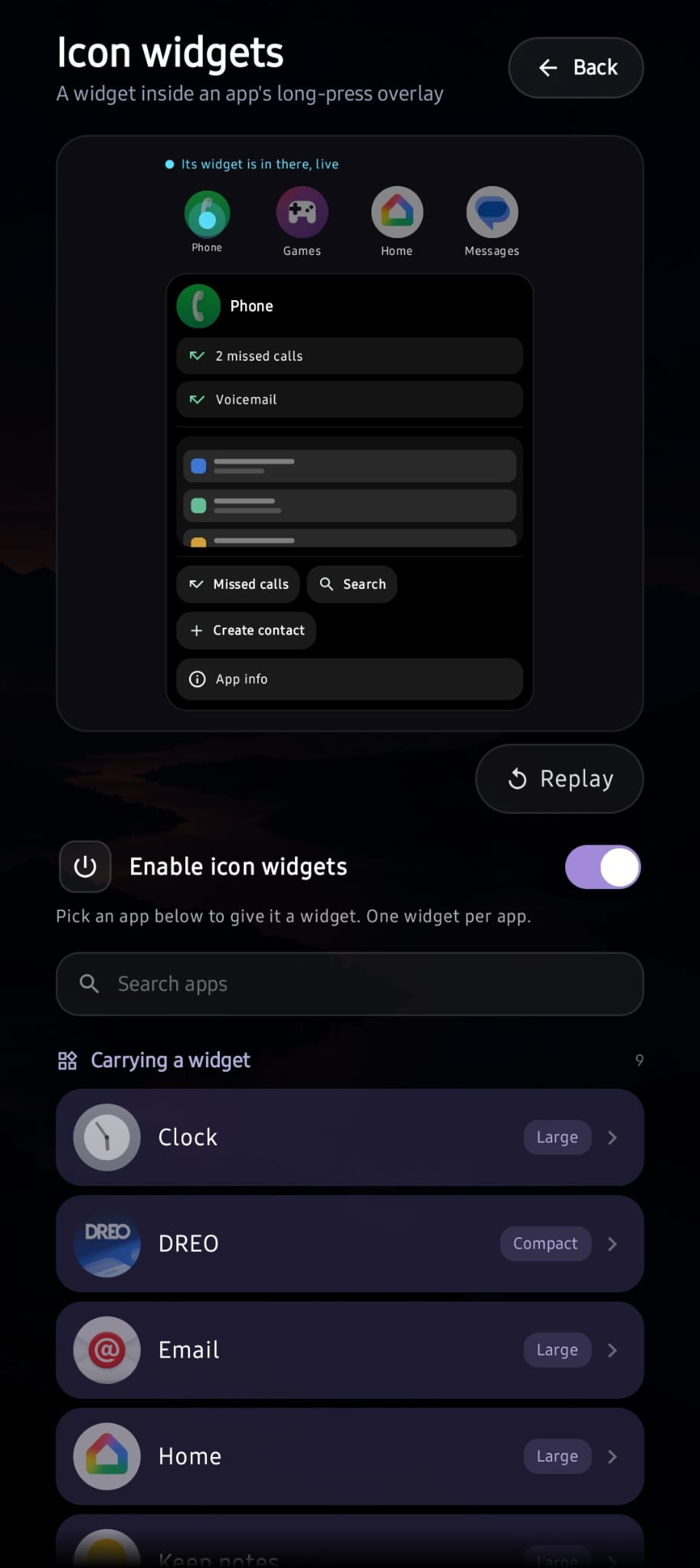
A panel opens over your home screen with that app's notifications, its shortcuts, and one of its widgets running live. Read it, tap what you need, let go. The app never launches.
The panel
Most launchers answer a long press with a few shortcuts. Arcadia adds the app's notifications and one of its widgets, and keeps the panel open until you lift your finger.
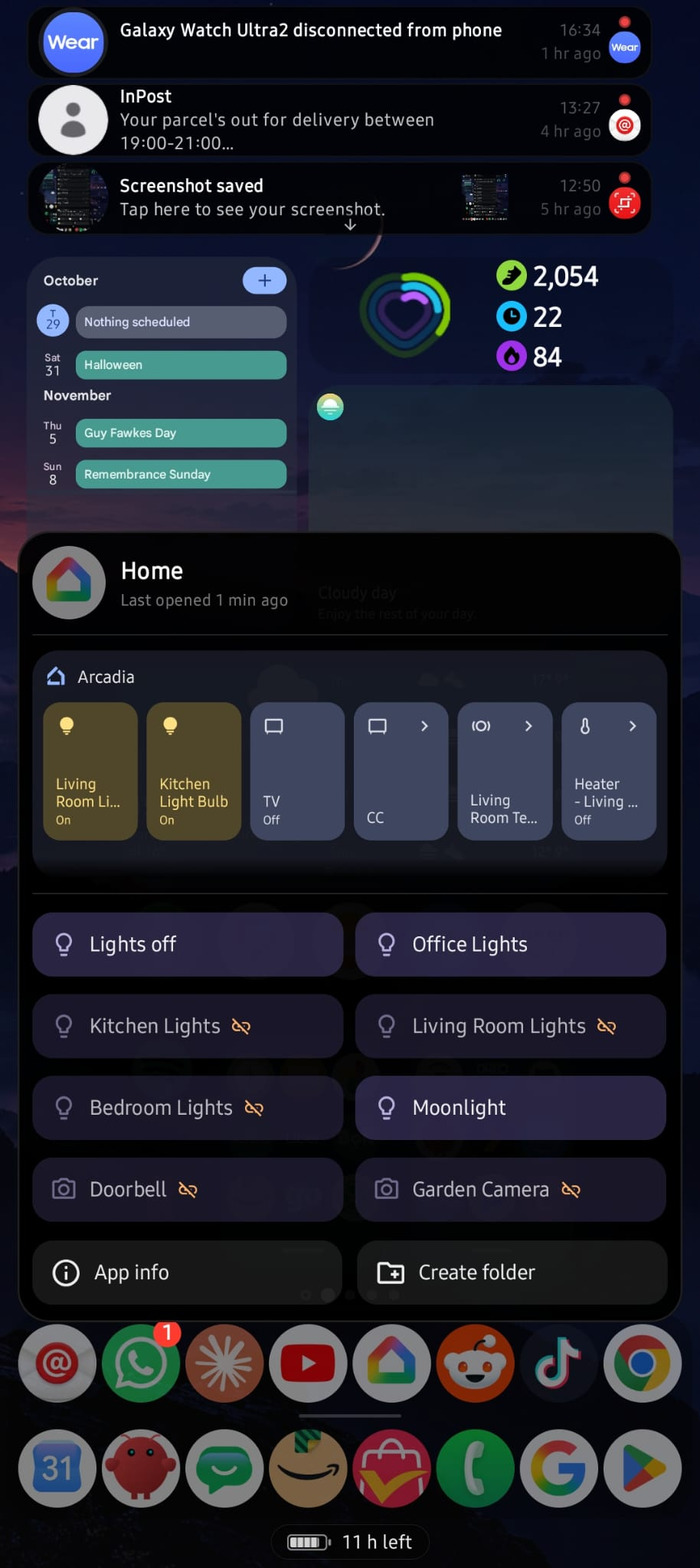
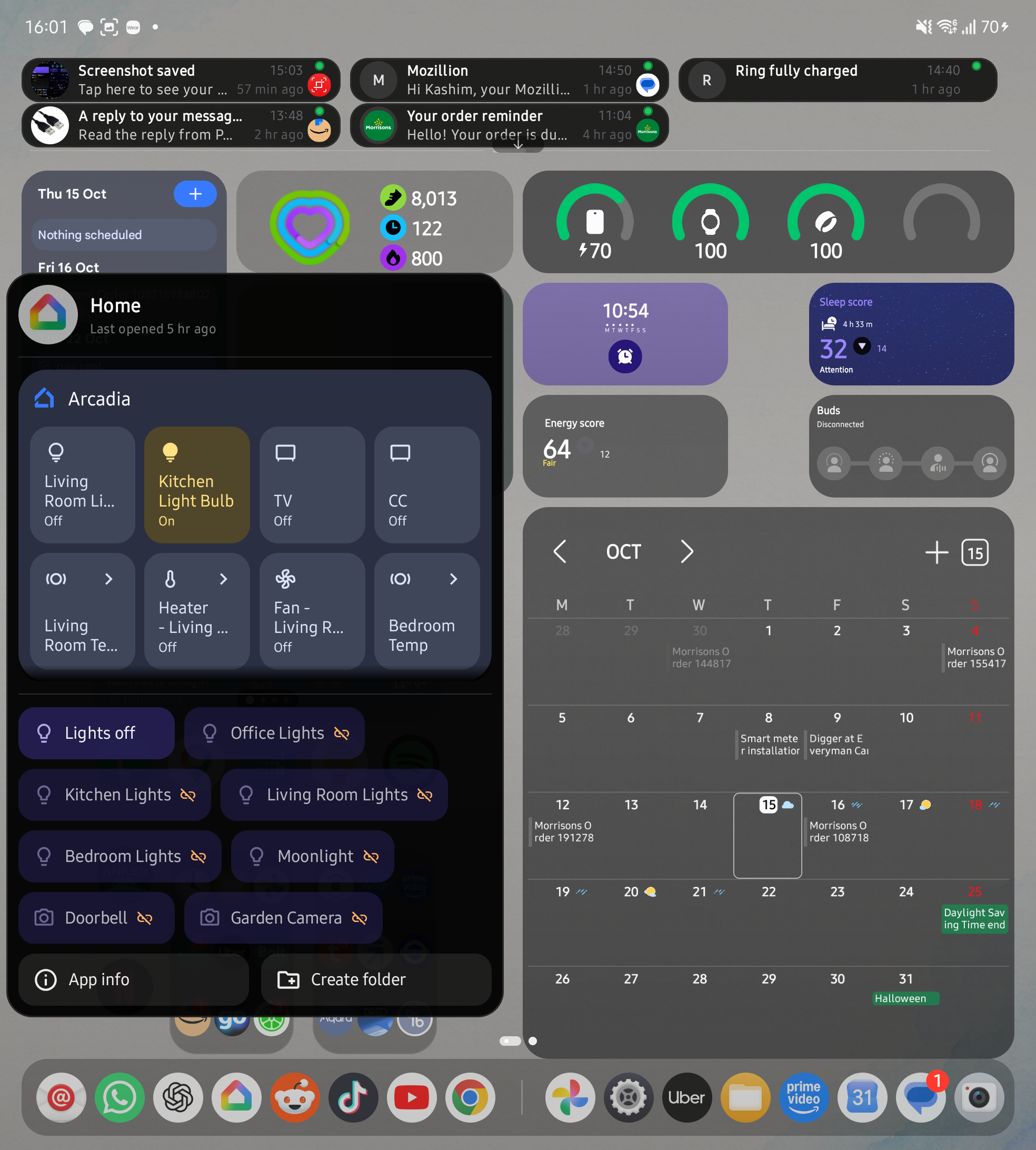
Live ones and the ones you already swiped away, kept per app and scrollable inside the panel.
Whatever the app offers: a scene, a chat, a search. No loading screen first.
Pick a widget per app and it runs inside the panel, updating as it would on the home screen.
Notifications
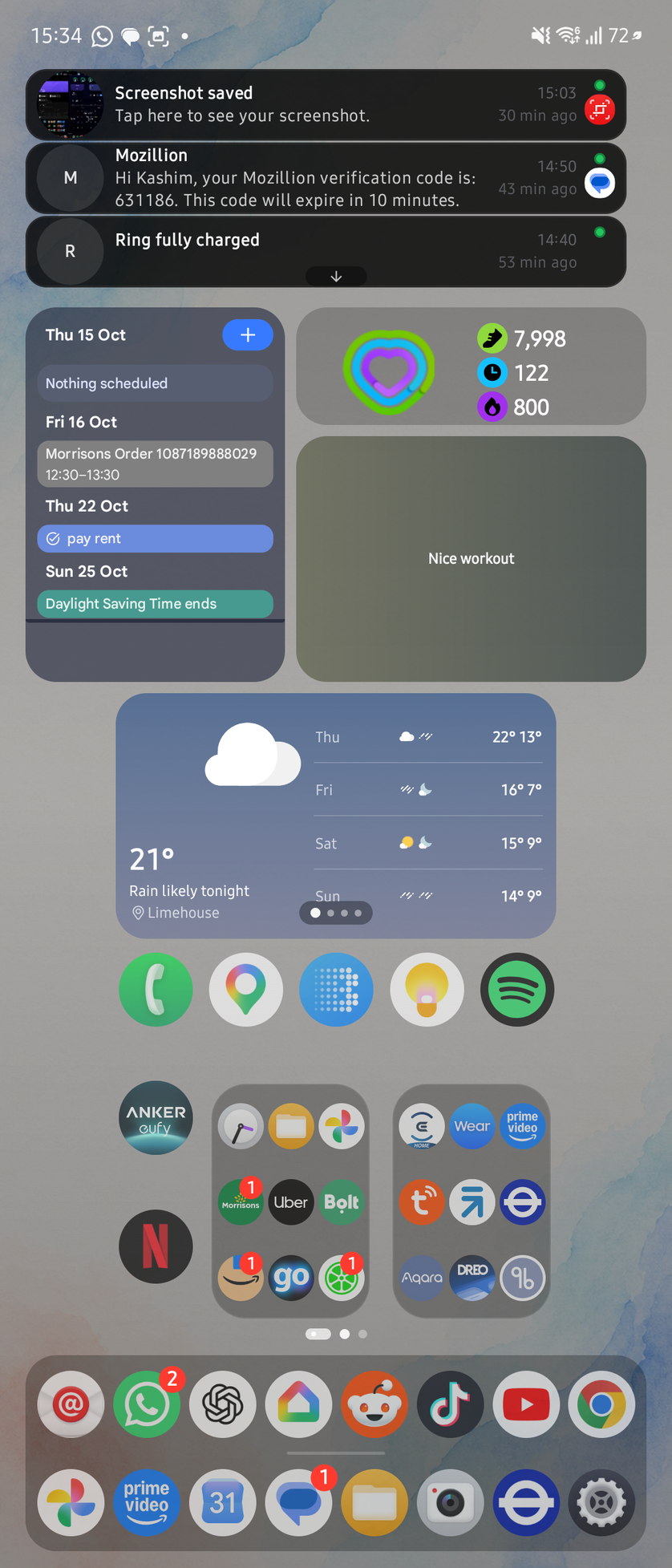
Recent notifications sit across the top of the home screen, so the thing you reached for your phone to check is readable without pulling anything down. Tap one to open it, swipe it away when you are done.

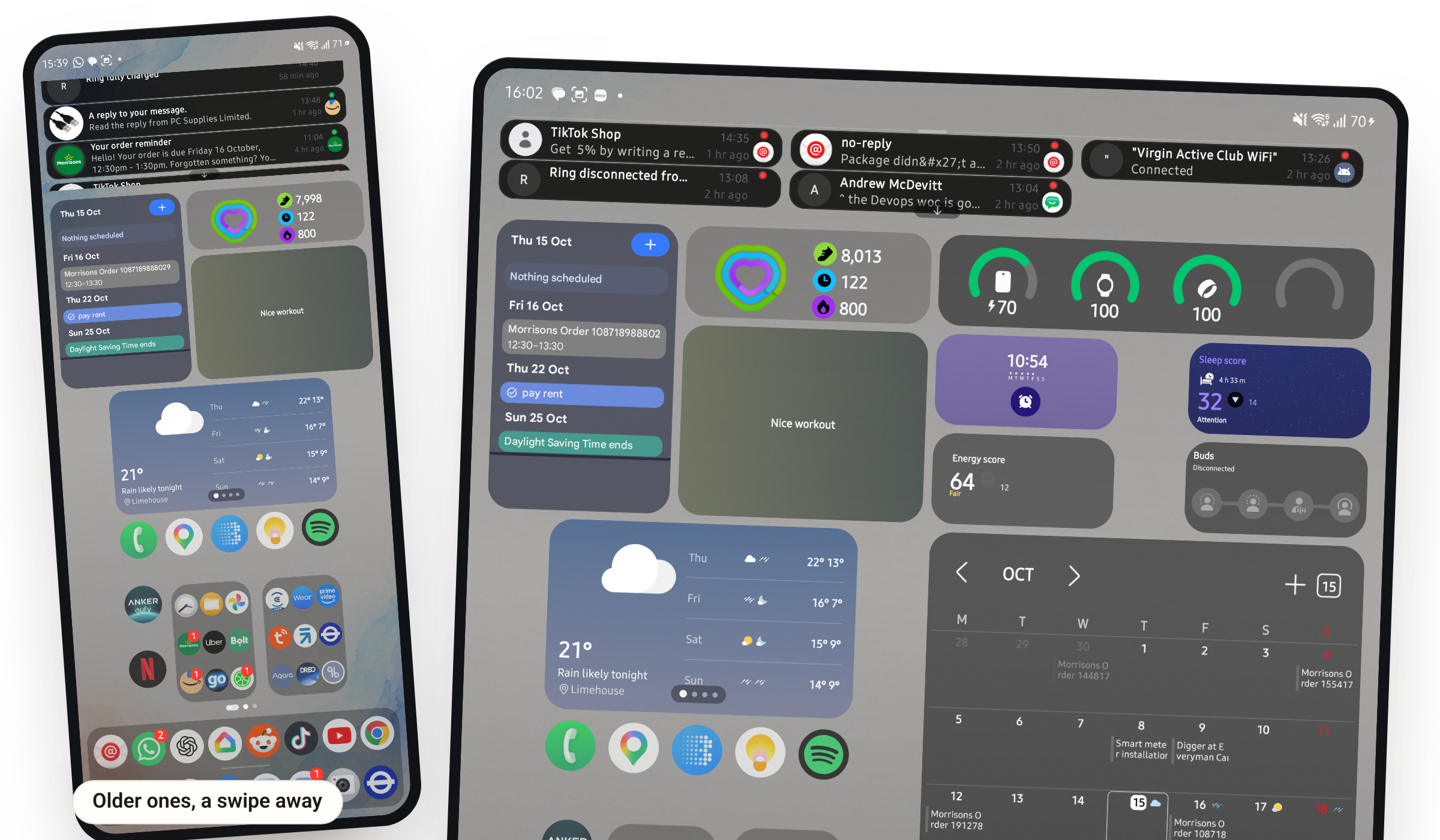
Sender, message and arrival time on the card. Most of the time that is the whole errand.
Swiping the shade does not lose them. Each app keeps its own history, including the images they arrived with.
Hold an app and its notifications are in the panel, live ones and cleared ones together, scrollable.
Phones and foldables
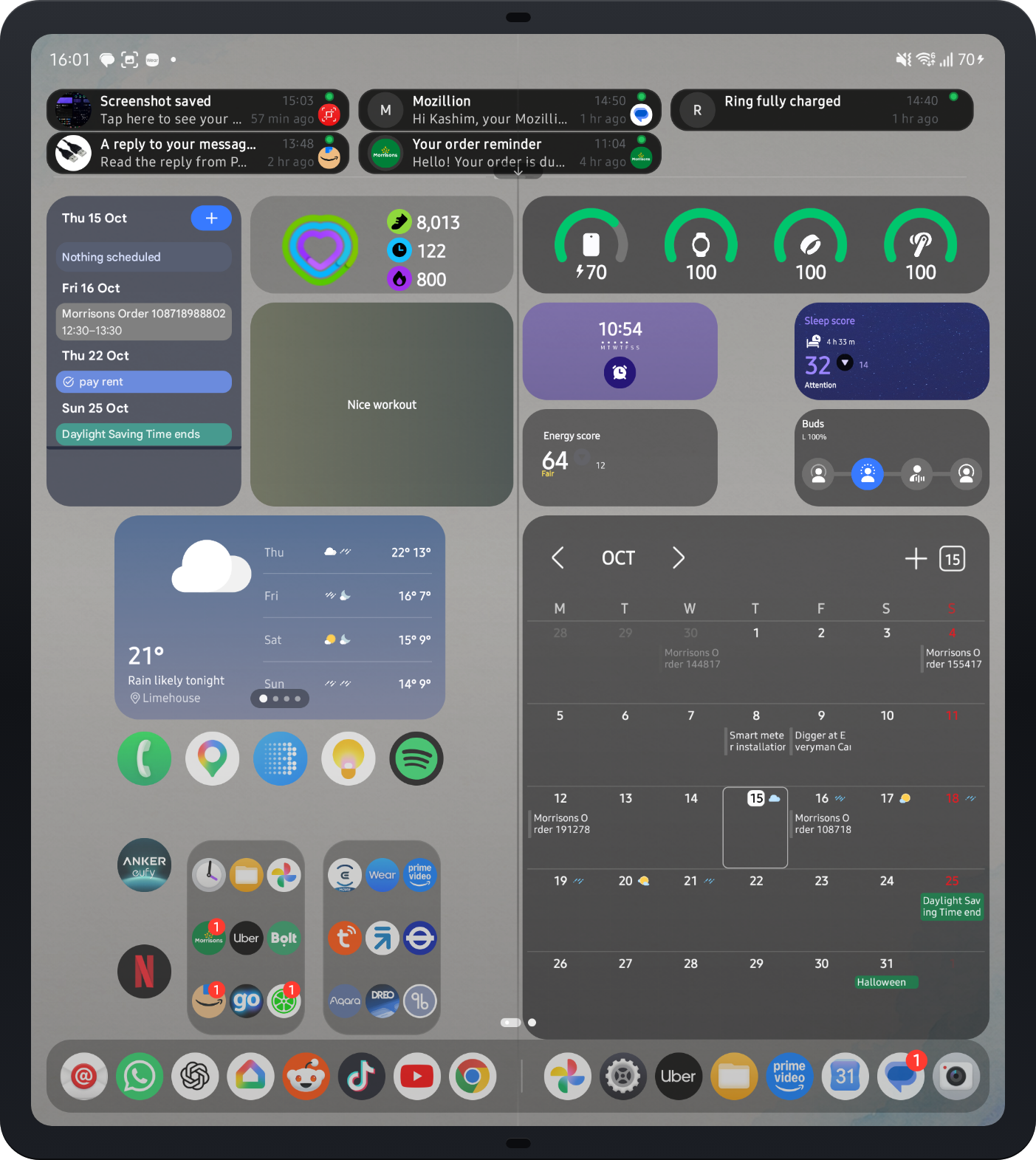
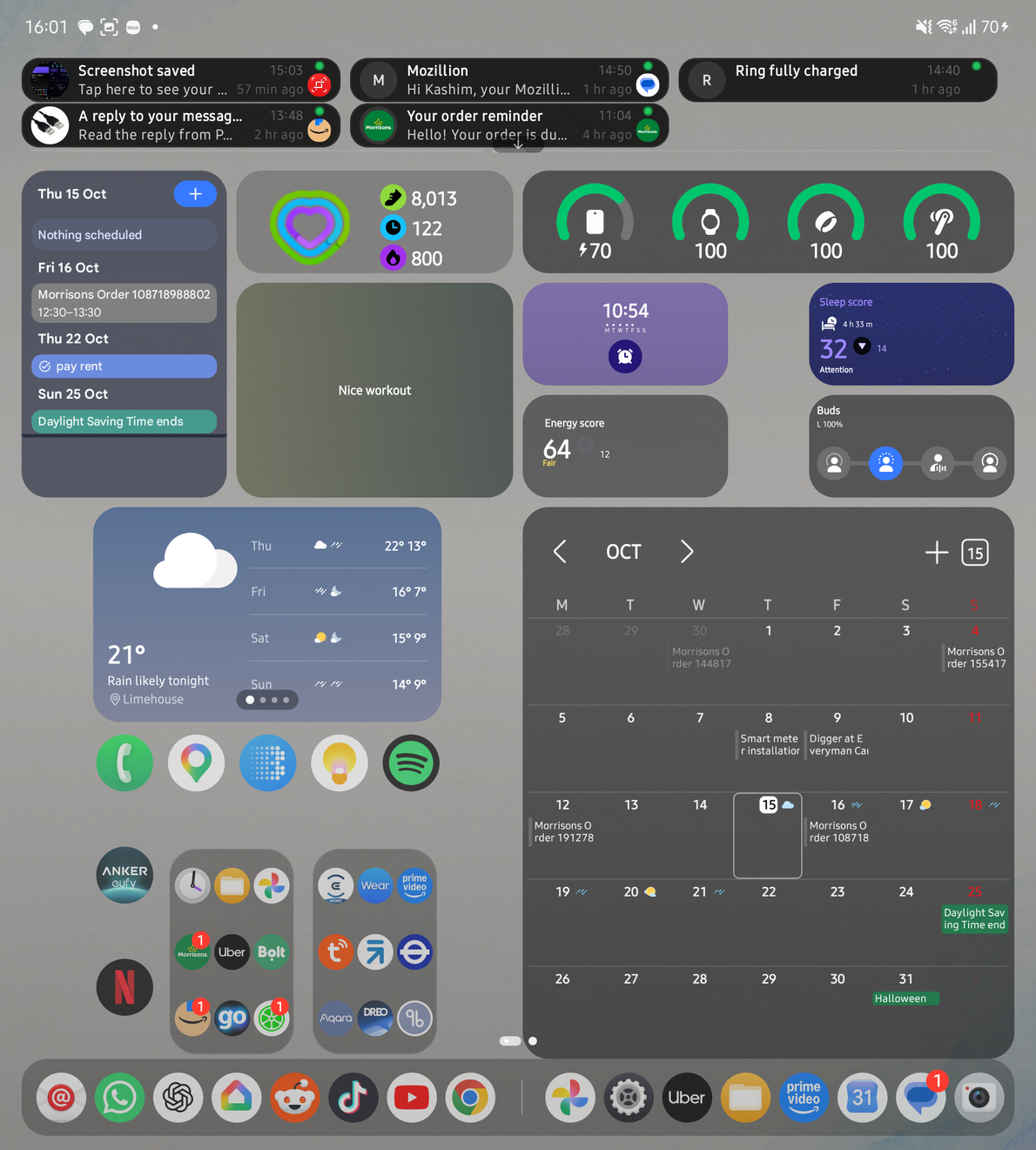
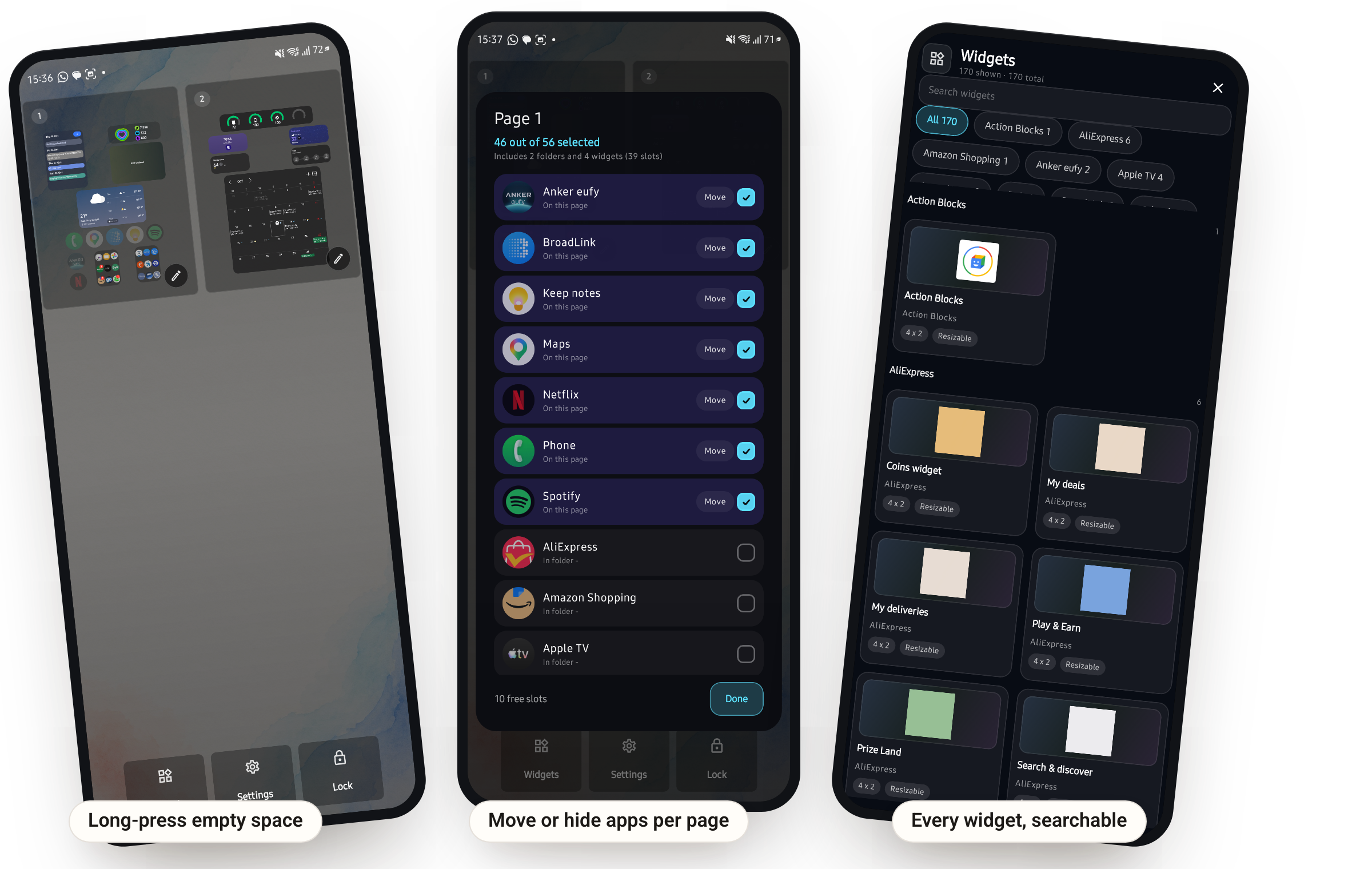
Arcadia keeps a single layout at a single grid. The inner screen is exactly twice the width of the cover screen’s grid, so two cover pages are the two halves of one unfolded page — the same apps, in the same order, in the same places. Unfolding shows you the half you were not looking at. It does not switch layouts, reflow the grid or move anything, and widgets are limited to the width of one half, so nothing is ever split down the fold.
App Blocks
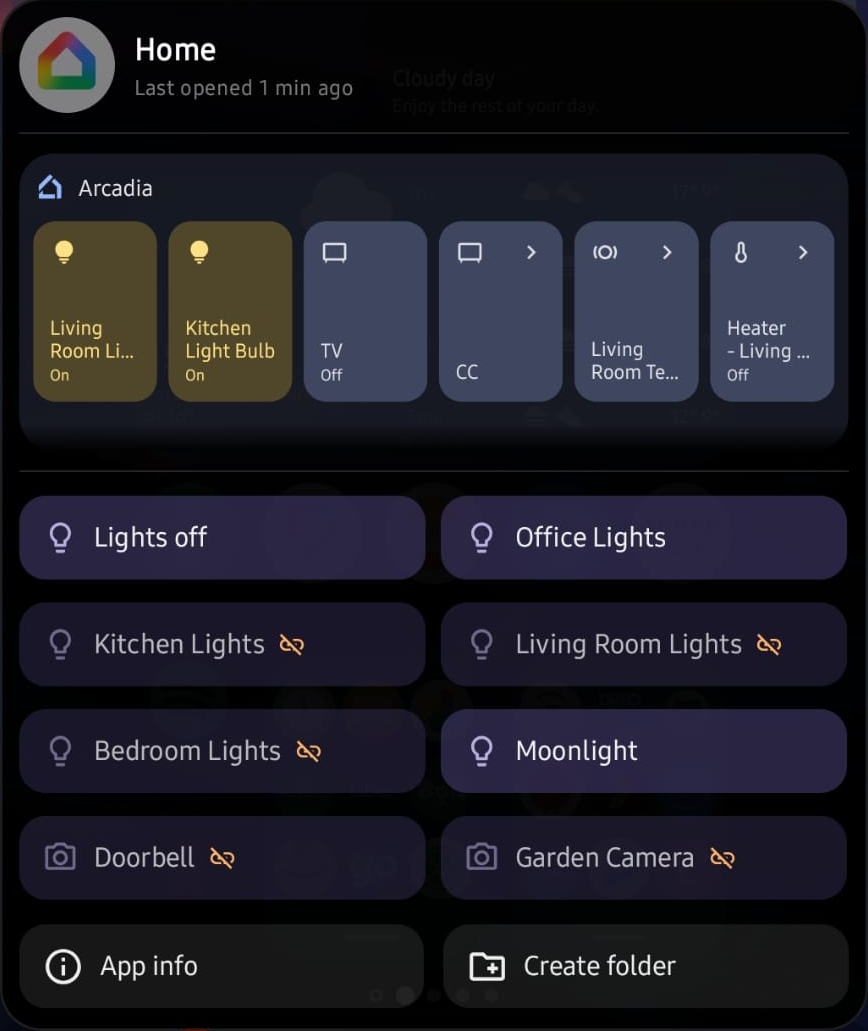
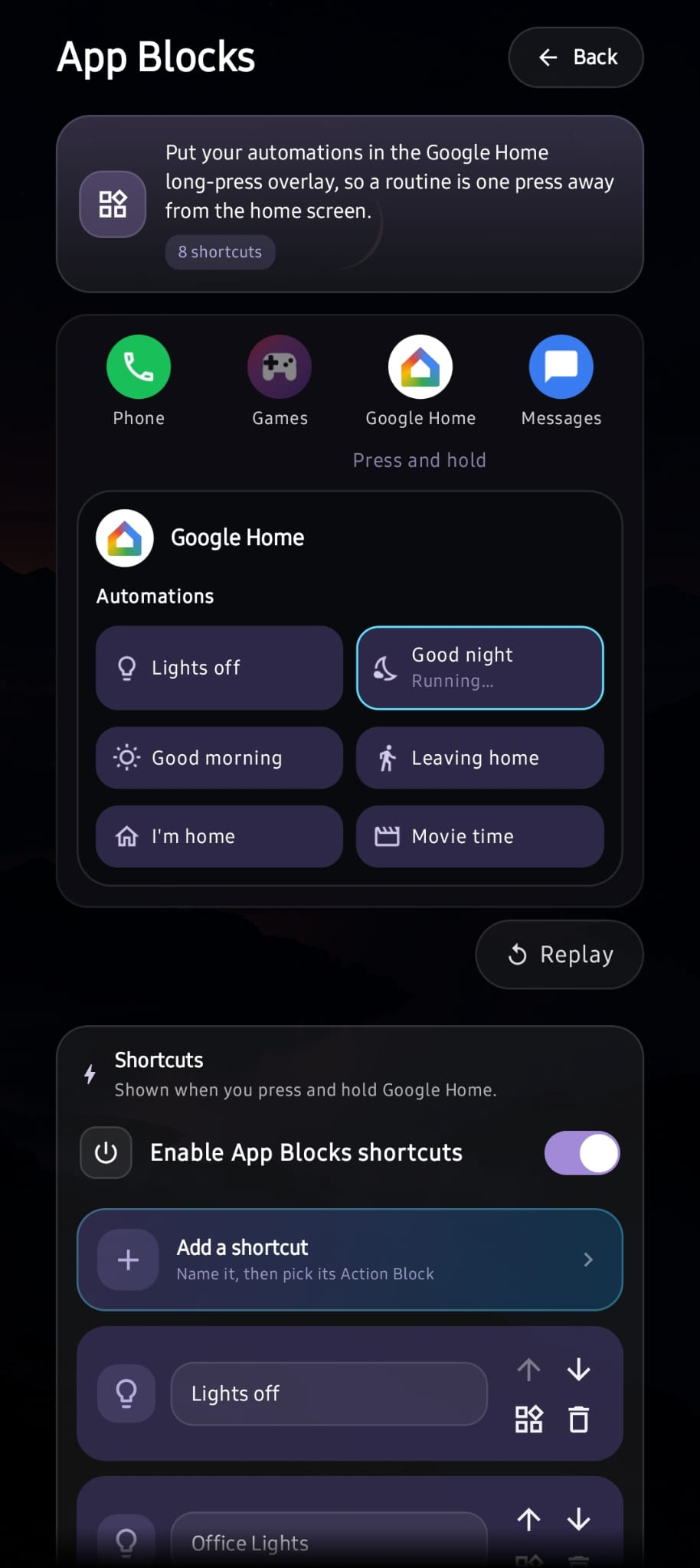
Name your Google Home routines once and they sit under the Home icon. Turning the lights off on the way out is a press and a tap, instead of opening the app and waiting for it to load.
Widgets
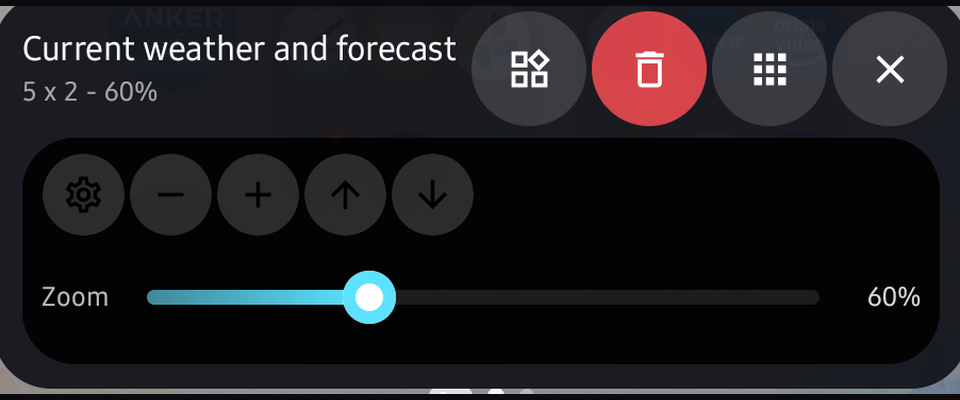
Arcadia hosts standard Android app widgets and adds three things the platform launcher does not: several widgets sharing a single grid slot, independent resizing and content scaling, and a widget that runs inside an app's panel instead of on the home screen.
Under a held icon
The panel is not only notifications, shortcuts and a widget. An icon can carry a stack of other apps, a game launcher can carry its games, and an app that is playing carries its controls.
Any home icon can carry a list of apps you choose. Hold it and they appear underneath it as a stack of small icons, in your order, each one a tap away. Let go and the home screen is exactly as it was.
Long press on any icon
Pick a launcher app and choose up to six games for it. Hold its icon and they appear as a list, one under the other, each one straight into the game. Your most played games, a long press away.
Long press on the game launcher icon
Hold the icon of an app that is playing and its panel shows what is on: the artwork, and play, pause and next. Two things and nothing else, with no use counts beside them. Skip the track or pause it, then let go.
Long press on an app that is playing
Control
One app owns the page left of home. Swipe right from page zero and you are in it.
Pick a launcher app, then choose up to six of your most played games for its panel.
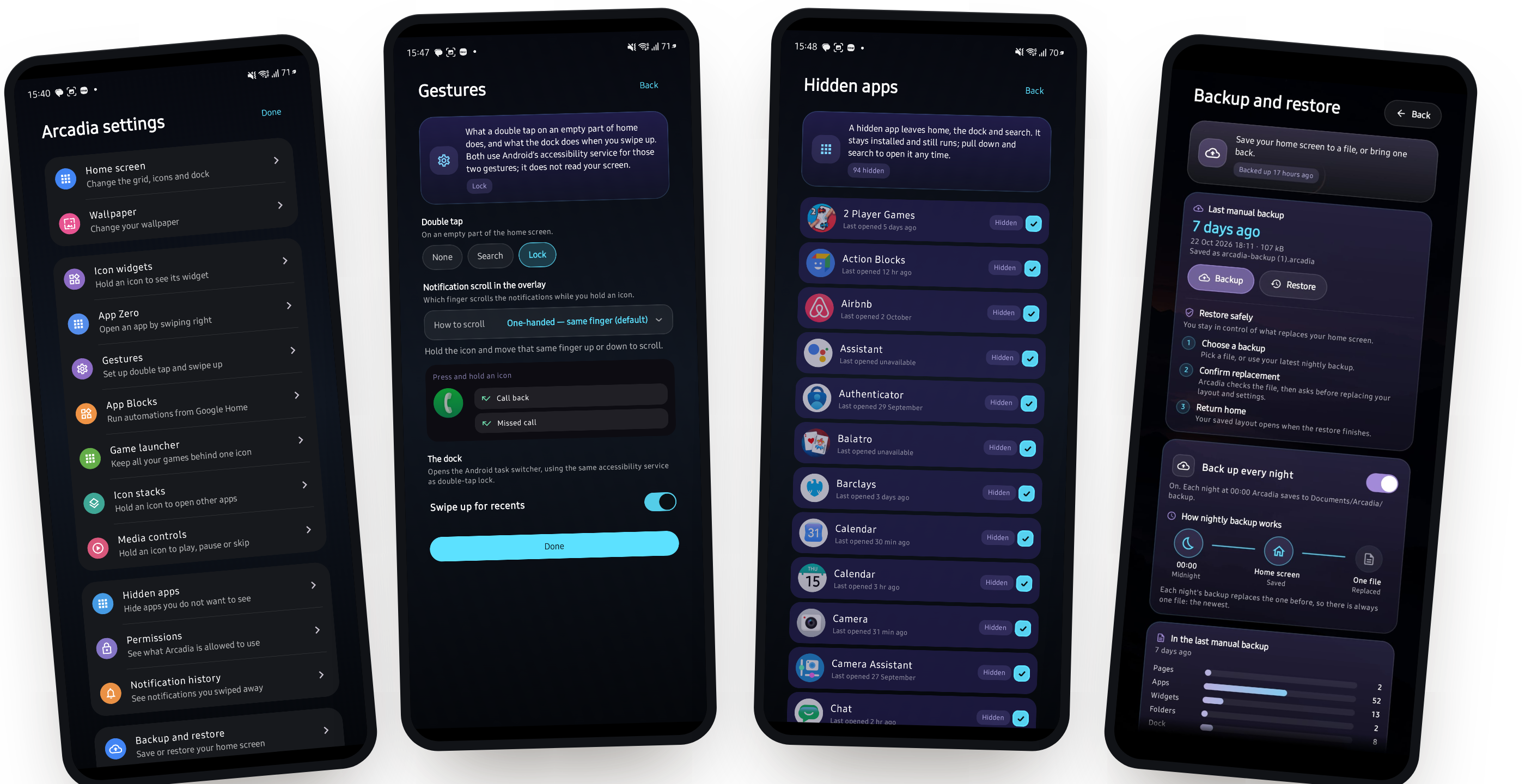
Hidden apps leave home, the dock and search. They stay installed and still work.
Kept per app, with the images they arrived with, after the shade has been cleared. Clear one app or all of them.
Pages, folders, widgets and settings saved to a file you keep. New phone, same home screen.
One layout at one grid. The cover screen shows half of it, the inner screen shows all of it, and opening the phone rearranges nothing.
Freeze the layout so a stray press cannot drag an icon out of place. Press and hold still opens the app’s block — the lock stops things moving, not the controls you use.
Double tap to search or lock the phone. Swipe up for search, swipe up on the dock for the task switcher.
Switch it on, or resize a folder past one slot, and the folder becomes a large tile: its apps in a grid, each one tap away.
Privacy
Built to respect your privacy.
Your privacy is a top priority. Your home-screen layout and notification history stay in Android’s private app storage. No account needed. You choose which permissions to allow.
Clear, simple information about your data. Read the policy.